Branded Theme
Customize your invoice and statement design using Xero’s Branded Theme
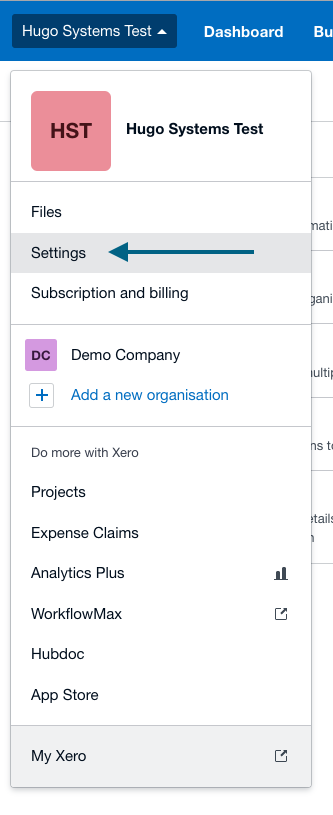
Step 1: Xero - Visit the Settings section of Xero
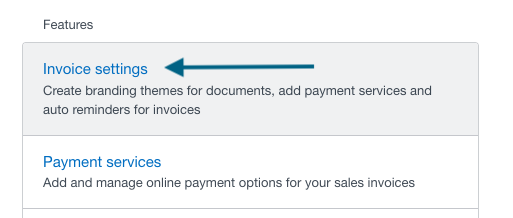
Step 2: Xero - Click in Invoice Settings
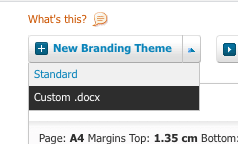
Step 3: Xero - Select Custom .docx
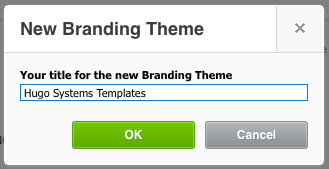
Step 4: Xero - Name your Template
Step 5: Xero - Download templates
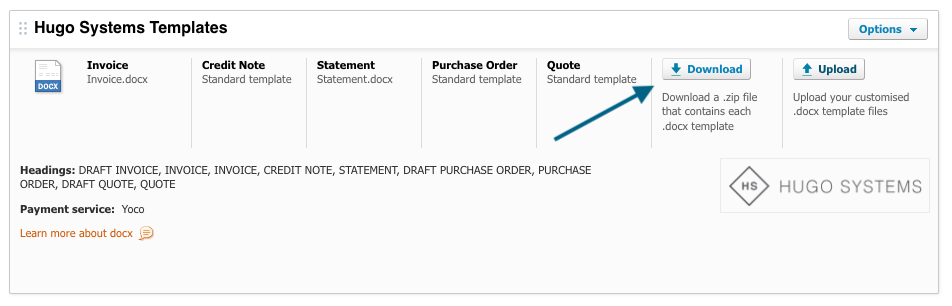
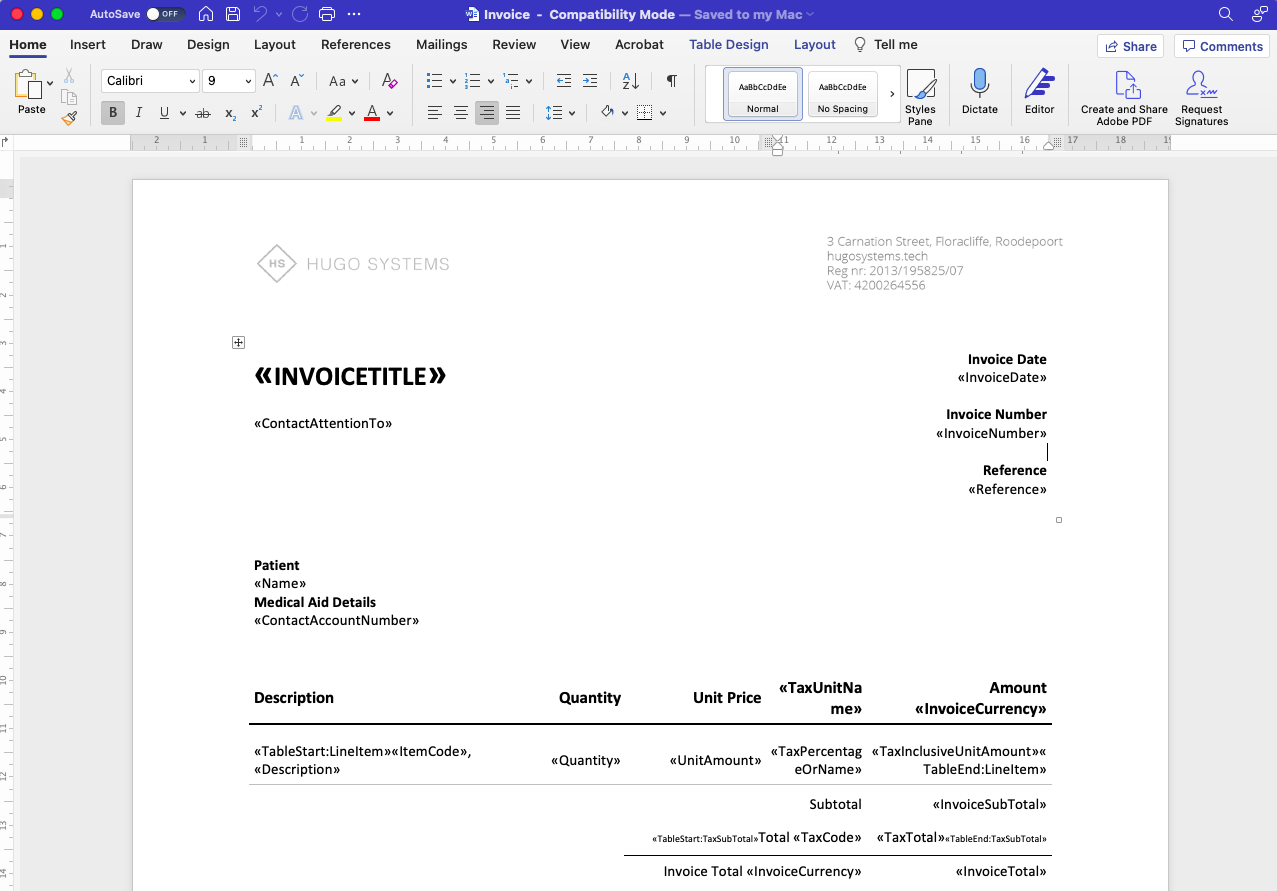
Step 6: Xero - Customize your templates
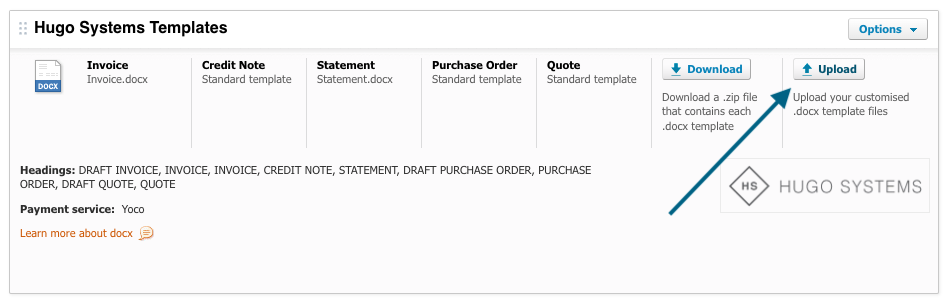
Step 6: Xero - Upload your templates
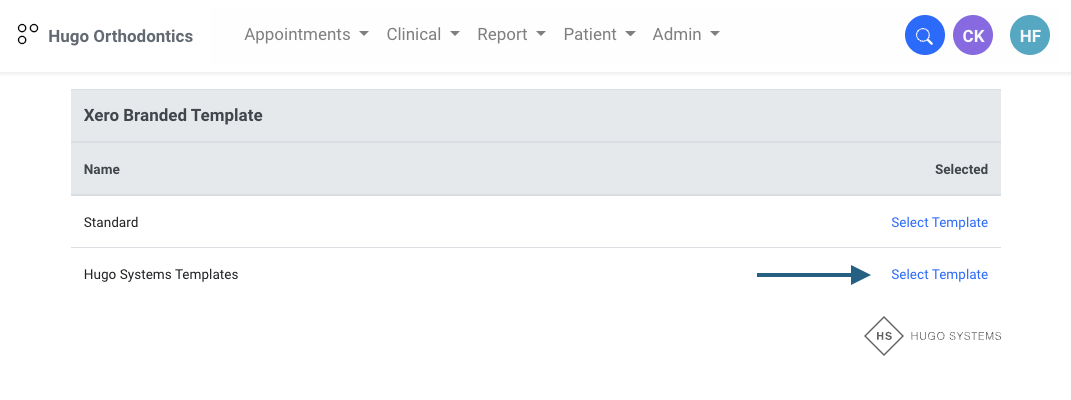
Step 7 Hugo Systems - Click Branded Theme
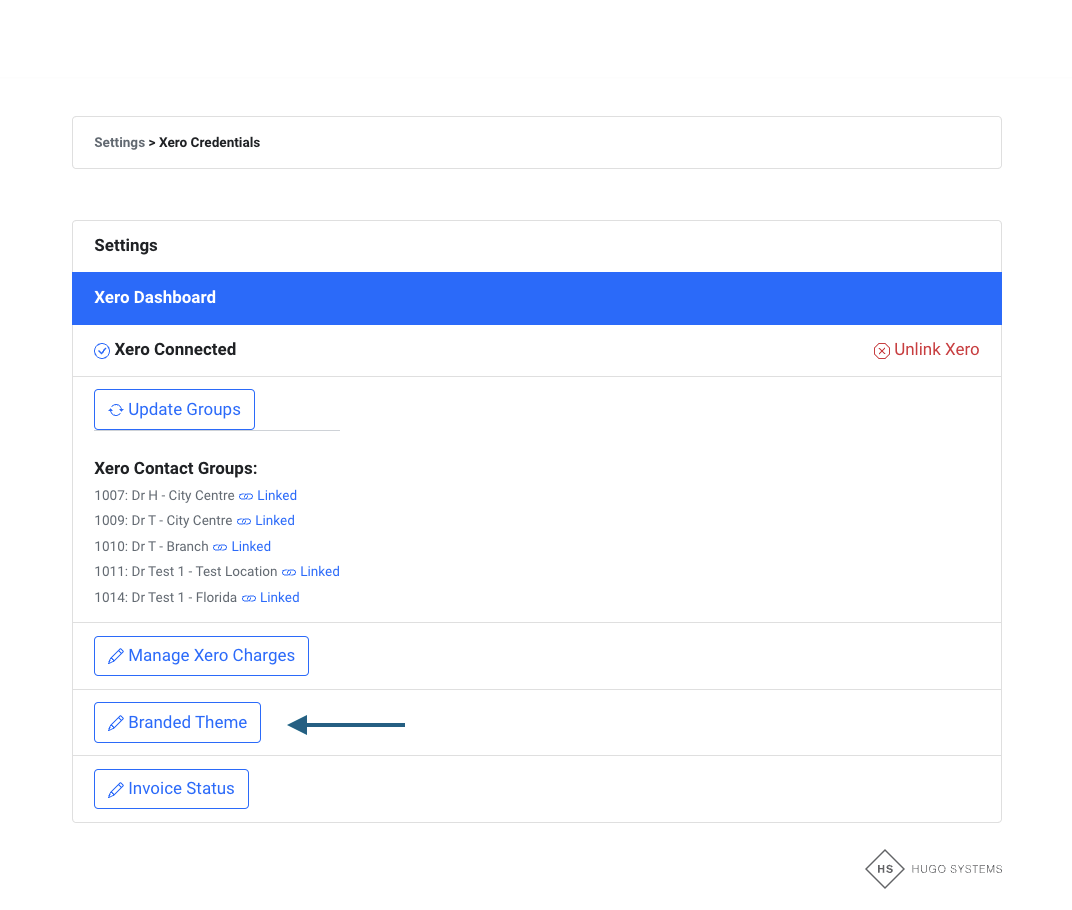
Step 8 Hugo Systems - Select Branded Theme Created
- Select the branded theme you’d like to use as your default invoice theme for Hugo Systems invoices
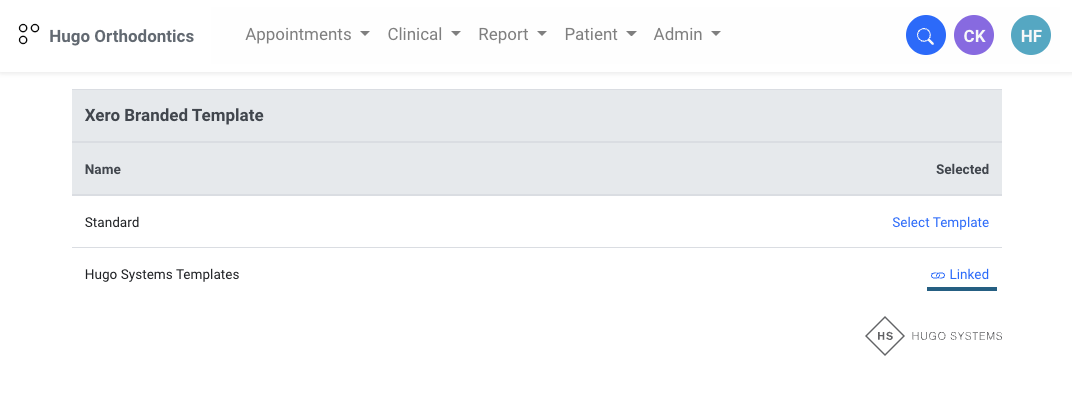
Step 9 Hugo Systems - Branded Theme Linked
Learn all about Xero using their excellent guides